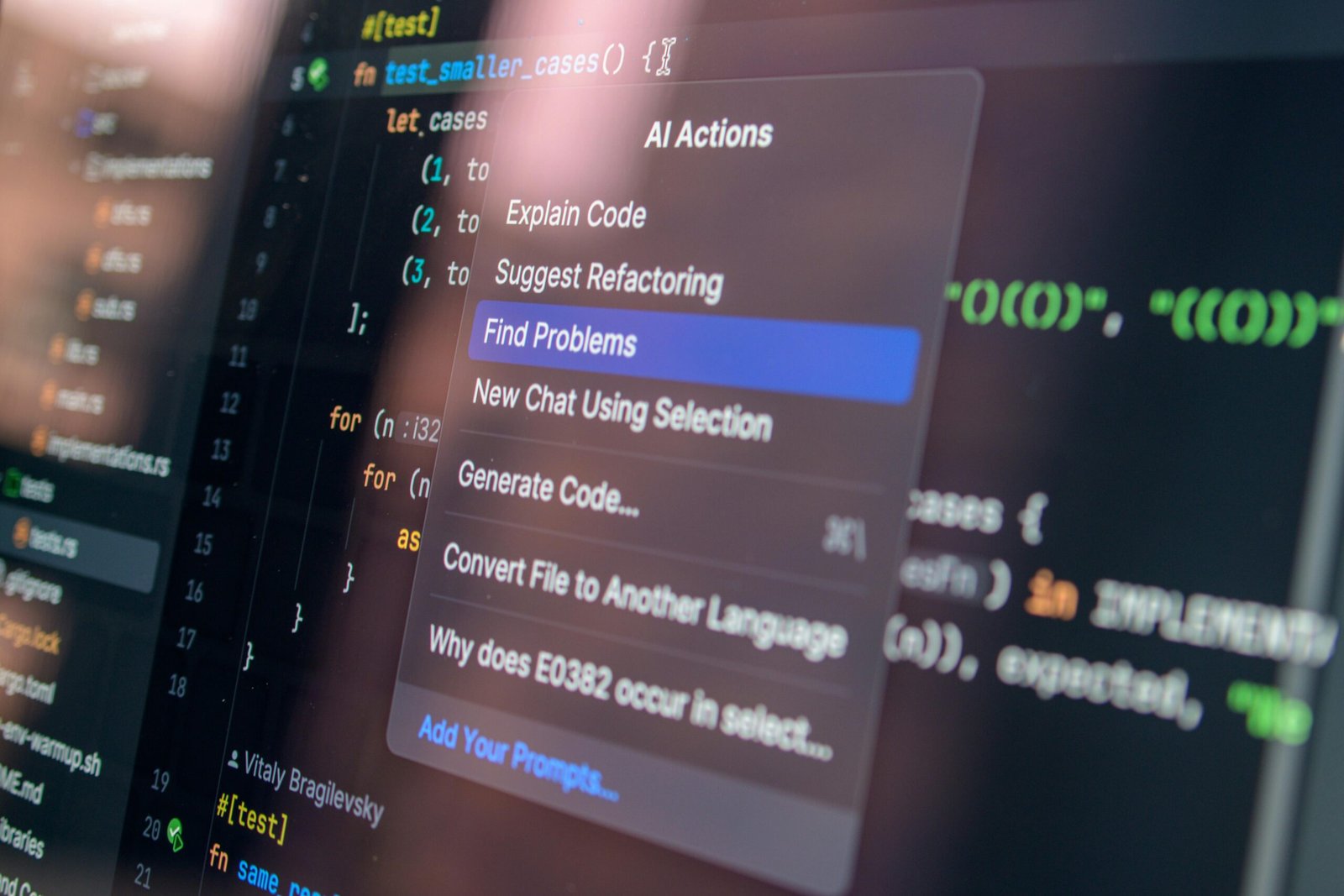
Why Developers Are Writing Code Twice as Fast in 2026
AI-powered coding tools have quietly transformed software development — and GitHub Copilot sits at the center of that revolution, helping developers ship cleaner code in dramatically less time. Whether you’re building a SaaS product, freelancing for clients, or maintaining enterprise applications, learning how to use AI to write code faster isn’t just a productivity hack anymore — it’s a competitive necessity. According to GitHub’s 2025 Developer Productivity Report, developers using Copilot complete coding tasks up to 55% faster than those working without AI assistance. That number has only grown as the tool has matured into its 2026 feature set. This guide gives you the practical, specific techniques that separate casual Copilot users from developers who truly unlock its potential.
Understanding What GitHub Copilot Actually Does Under the Hood
Before you can use any tool masterfully, you need to understand what it’s actually doing. GitHub Copilot is powered by a large language model — currently built on OpenAI’s Codex architecture and further enhanced through Microsoft’s continued investment in AI development. It reads the context of your open files, your comments, your function names, and the surrounding code to predict what you’re most likely to write next.
This isn’t autocomplete in the traditional sense. Copilot reasons about intent. It can infer that a function called fetchUserOrders in a file already importing an Axios library probably needs an async HTTP request with error handling. That contextual intelligence is what makes it genuinely useful — but it also means that how you set up your workspace and write your prompts directly determines the quality of what Copilot generates.
The Context Window: Your Secret Weapon
GitHub Copilot reads everything in your currently open files, not just the line you’re working on. This is critical to understand. Developers who leave relevant files open — utility functions, type definitions, database schema files — give Copilot far more context to work with. The result is suggestions that actually match the conventions and structures already in your codebase, rather than generic boilerplate that needs heavy editing.
In 2026, Copilot’s context window has expanded significantly through the Copilot Workspace feature, which can now reason across entire repositories rather than individual files. This means architecture-level suggestions are becoming more accurate, and it’s worth exploring workspace-level features if you’re on a Copilot Business or Enterprise plan.
Copilot Chat vs. Inline Suggestions
Many developers use only Copilot’s inline suggestions — the grey text that appears as you type. But Copilot Chat, accessible directly within VS Code, JetBrains IDEs, and other supported editors, is equally powerful for different tasks. Inline suggestions excel at completing functions and writing repetitive code. Copilot Chat is better for explaining unfamiliar code, debugging logic errors, writing tests, and asking architectural questions. Using both intelligently is the mark of a developer who genuinely knows how to use AI to write code faster.
Writing Prompts That Actually Get Results
Prompt engineering isn’t just for ChatGPT users building content workflows. When you write comments or function signatures in your code, you’re effectively prompting Copilot. The quality of your input determines the quality of its output — a principle that holds across every AI tool in 2026.
Descriptive Comments Before Functions
The single most reliable technique for improving Copilot’s suggestions is writing a clear, specific comment immediately before the function you want it to generate. Vague comments produce vague code. Specific comments produce code you can actually use.
Instead of writing a comment like “handle login,” try something like: “Validate email format, check password against hashed value in the database, return a JWT token if successful, and return a 401 error with a descriptive message if not.” That level of specificity gives Copilot the scaffolding to generate something genuinely useful on the first attempt, saving you the back-and-forth of editing generic output.
Using Function Signatures as Prompts
In strongly typed languages like TypeScript, well-written function signatures are themselves powerful prompts. When you define a function with explicit parameter types, a descriptive name, and a clear return type, Copilot can often generate the entire function body with minimal comment guidance. This is especially true for common patterns like data transformation, API response formatting, or input validation — tasks where the types alone tell the story.
Iterating With Copilot Chat
When an inline suggestion misses the mark, don’t just delete it and try again. Open Copilot Chat and have a conversation about it. You can paste in the suggestion and ask why it took that approach, request an alternative with different error handling, or ask it to refactor the output to match a pattern already used elsewhere in your project. This iterative loop — generate, evaluate, refine — is how experienced developers use AI to write code faster without sacrificing quality.
Workflow Optimizations That Multiply Your Speed
Using Copilot well isn’t just about what you type — it’s about how you structure your entire development workflow around AI assistance. These optimizations apply whether you’re writing Python scripts, building React components, or working in Go on backend services.
Test-Driven Development Pairs Perfectly With Copilot
Writing your tests before your implementation functions is already good practice — but it also happens to be an excellent Copilot strategy. When you write a test describing exactly what a function should do, Copilot can read that test and generate an implementation that satisfies it. A 2024 Stack Overflow Developer Survey found that 62% of developers using AI coding tools reported the biggest time savings came from test generation and boilerplate reduction. Writing tests first gives Copilot a precise target to aim at, dramatically improving suggestion quality for the implementation code.
Scaffolding Repetitive Code at Scale
Every codebase has patterns that repeat: CRUD operations, route handlers, validation schemas, database queries. Once Copilot has seen a few examples of how you handle these patterns in a project, it becomes remarkably good at predicting the next instance. Deliberately writing one or two clean, well-commented examples early in a project essentially trains Copilot on your conventions, making every subsequent repetition faster and more consistent.
Using Copilot for Code Documentation
Documentation is the task most developers consistently deprioritize because it takes time without feeling like forward progress. Copilot eliminates this friction almost entirely. By positioning your cursor above an existing function and prompting Copilot to generate a docstring or JSDoc comment, you can document an entire module in minutes. This keeps your codebase maintainable without interrupting development momentum — a genuine quality-of-life improvement that compounds over time.
Keyboard Shortcuts Worth Memorizing
Speed comes from reducing friction, and nothing reduces friction faster than keyboard shortcuts. In VS Code, pressing Tab accepts a Copilot suggestion, Escape dismisses it, and Alt + ] (or Option + ] on Mac) cycles through alternative suggestions. That last shortcut is underused and extremely valuable — if the first suggestion isn’t quite right, there are often two or three alternatives that better match your intent. Taking five minutes to memorize these shortcuts pays dividends every single day.
Avoiding the Pitfalls That Slow Developers Down
GitHub Copilot is a powerful tool, but it introduces new failure modes that developers need to understand. According to a 2025 study published by Stanford’s Human-Computer Interaction Group, developers who accepted AI-generated code without review introduced security vulnerabilities at a measurably higher rate than those who maintained a review habit. The goal isn’t to stop using AI — it’s to use it intelligently.
Never Trust Copilot With Security-Sensitive Code Blindly
Authentication logic, SQL query construction, file system access, and cryptographic operations are areas where Copilot’s suggestions should always be reviewed carefully before acceptance. The model is trained on public repositories, which include code with known vulnerabilities. It can reproduce those patterns confidently. Always cross-reference security-critical code against current best practices from authoritative sources like OWASP, regardless of how polished the Copilot suggestion looks.
Watch for Confident Hallucinations
Copilot sometimes suggests functions from libraries that don’t exist, references API endpoints with incorrect parameters, or generates code using deprecated methods. This is especially common with newer libraries or rapidly changing frameworks. The suggestion will look syntactically correct and follow reasonable patterns — which makes it easy to miss. Running your test suite after accepting suggestions, rather than trusting visual inspection alone, is the most reliable safety net.
Avoiding Over-Reliance on AI Suggestions
There’s a documented risk among newer developers of accepting Copilot suggestions without fully understanding them. This feels fast in the short term but creates problems when the code breaks and the developer doesn’t understand why. The healthiest approach is to treat Copilot as a pair programmer whose output you’re responsible for reviewing — not a black box that generates finished code. If you accept a suggestion you don’t fully understand, take 60 seconds to ask Copilot Chat to explain it. That habit builds both speed and comprehension simultaneously.
Advanced Features Most Developers Haven’t Explored Yet
GitHub has shipped significant feature updates throughout 2025 and into 2026, many of which remain underutilized by developers who set up Copilot once and never revisited their configuration.
Copilot Workspace for Multi-File Reasoning
Copilot Workspace, now available across GitHub’s paid tiers, allows you to describe a feature in plain English and have Copilot generate a plan that spans multiple files — creating new files, modifying existing ones, and writing tests for the implementation. For feature work that would otherwise require significant context-switching across a codebase, this is a genuine time multiplier. It’s particularly effective for developers working on unfamiliar codebases who need to understand existing patterns before making changes.
Custom Instructions and Repository-Level Context
GitHub Copilot now supports custom instruction files at the repository level. By adding a configuration file to your project, you can specify your team’s coding standards, preferred libraries, naming conventions, and architectural patterns. This is transformative for teams — it means every developer’s Copilot instance is aligned to project-specific conventions from day one, dramatically reducing the inconsistency that comes from having multiple developers using AI tools independently.
Copilot for Pull Request Summaries
One of the least glamorous but most practically valuable features in 2026 is Copilot’s ability to generate pull request summaries directly in GitHub. Rather than writing a description of your changes manually, Copilot reads your diff and produces a structured summary. For teams practicing code review, this reduces the cognitive load of understanding what changed and why — speeding up the review process for everyone involved.
Mastering how to use AI to write code faster ultimately comes down to treating Copilot as a system that responds to thoughtful inputs, not a magic button that removes the need for engineering judgment. Developers who invest time understanding how the tool reasons, who structure their prompts deliberately, and who maintain strong review habits are consistently the ones reporting the biggest productivity gains — not just faster typing, but faster shipping of quality software.
Frequently Asked Questions
Is GitHub Copilot worth it for solo developers and freelancers?
Yes, particularly if you work across multiple languages or frameworks. The Copilot Individual plan costs around $10 per month as of 2026, and most developers recover that in saved time within the first week of use. For freelancers billing hourly, faster delivery means either more projects or more competitive pricing — both meaningful advantages. The key is investing a few hours learning to use it effectively rather than just installing it and hoping for results.
Does GitHub Copilot work with languages other than JavaScript and Python?
GitHub Copilot supports over 20 programming languages, including TypeScript, Go, Rust, Java, C++, Ruby, PHP, and more. Performance is strongest in JavaScript, Python, and TypeScript because those languages are most heavily represented in the public repositories used for training. That said, Copilot’s support for languages like Go and Rust has improved considerably through 2025 and into 2026, making it genuinely useful for backend and systems developers working outside the JavaScript ecosystem.
How do I use AI to write code faster without introducing bugs?
The most effective approach combines Copilot with a strong testing culture. Write tests before accepting significant suggestions, run your test suite regularly, and never accept security-sensitive code without careful review. Treat every Copilot suggestion as a first draft from a capable but imperfect collaborator. Using Copilot Chat to ask for explanations when a suggestion isn’t immediately clear also helps catch logic errors before they become bugs in production.
Can GitHub Copilot understand my existing codebase style?
Increasingly, yes. Copilot reads all open files in your editor, adapting to your naming conventions, code structure, and patterns already present in your project. With the repository-level custom instructions feature introduced in 2025, teams can now formally specify conventions that Copilot follows consistently. The more relevant context you keep open in your editor, the more aligned Copilot’s suggestions will be to your existing codebase style.
Is the code GitHub Copilot generates owned by me?
According to GitHub’s terms of service as of 2026, code you write or accept using Copilot is owned by you, not GitHub or Microsoft. However, because Copilot is trained on public code, there is a small possibility it could reproduce recognizable snippets from licensed open-source projects. GitHub has addressed this with a feature that flags suggestions resembling public code with matching licenses. For commercial projects, enabling this filter in your Copilot settings is a sensible precaution.
What’s the difference between GitHub Copilot Individual, Business, and Enterprise plans?
Copilot Individual is designed for solo developers and includes core inline suggestions and Copilot Chat. Copilot Business adds team management features, policy controls, and enhanced privacy settings — Copilot does not train on your code under the Business plan. Copilot Enterprise adds Copilot Workspace, repository-level custom instructions, PR summaries, and deeper integration with GitHub’s project management tools. For professional teams shipping production software, the Business or Enterprise tiers provide meaningfully better security posture and team-aligned output quality.
Will AI coding tools eventually replace software developers?
The consensus among researchers and industry practitioners in 2026 is that AI tools are augmenting developers, not replacing them. A McKinsey Technology Report from 2025 found that while AI can automate roughly 30% of current coding tasks, the demand for skilled developers who can architect systems, evaluate AI output, and make product decisions has actually increased alongside AI adoption. Developers who learn to work effectively with AI tools are consistently more productive and more employable — not less relevant.
The developers winning in 2026 aren’t the ones who can type the fastest — they’re the ones who know how to direct AI tools with precision, review output with critical judgment, and integrate AI assistance into a disciplined engineering workflow. GitHub Copilot, used thoughtfully, is one of the most significant productivity tools available to software developers today. Invest the time to learn it properly, stay current with its rapidly expanding feature set, and treat it as a skilled assistant whose work you’re always responsible for — and it will compound your output in ways that make the learning curve more than worth it.
Disclaimer: This article is for informational purposes only. Always verify technical information and consult relevant professionals for specific advice regarding software development, security practices, and licensing decisions.
Leave a Reply