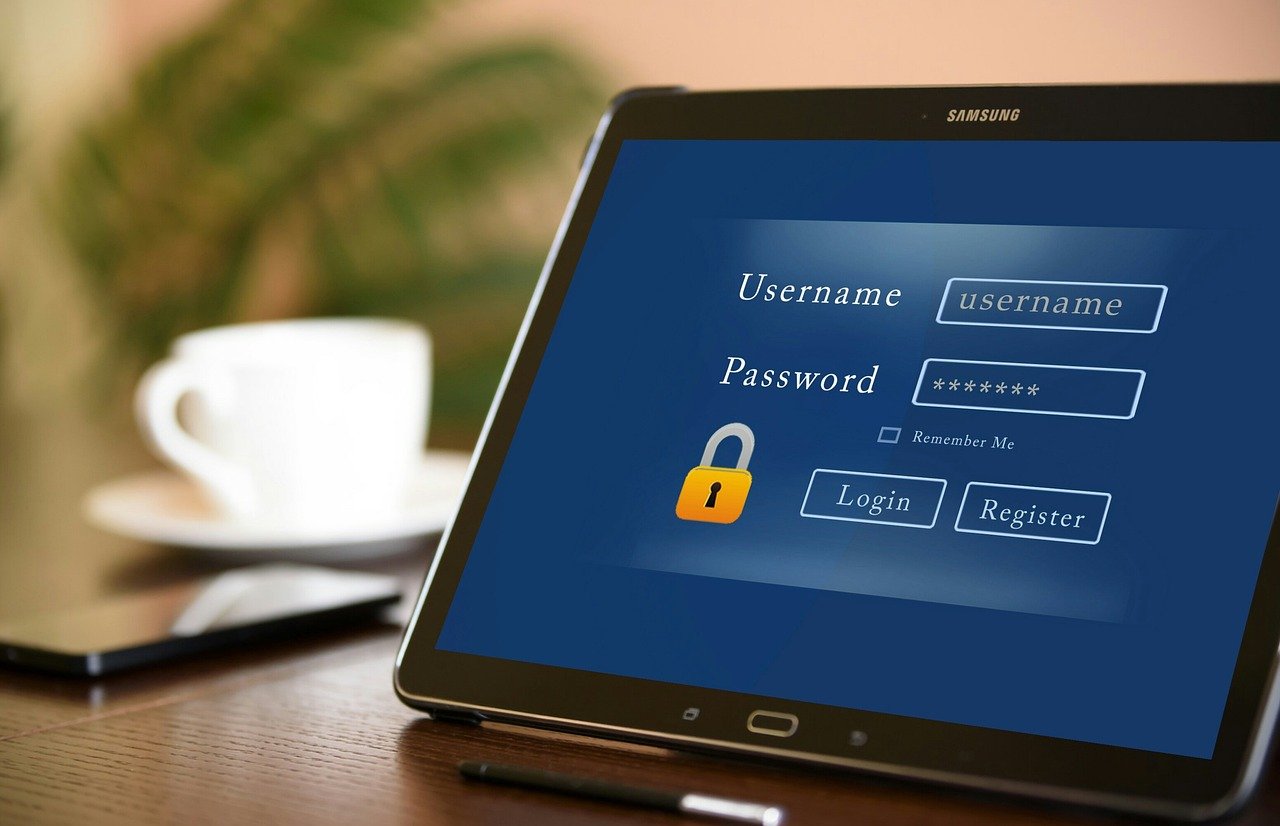
Your Password Alone Is No Longer Enough
In 2026, a stolen password takes an average of less than two seconds to exploit — and two-factor authentication is the single most effective tool most people still aren’t using correctly. If you have an online account, a bank login, or a business email, this article will show you exactly why that matters and what to do about it right now.
Data breaches have become so routine that cybersecurity researchers now treat them as a background condition of digital life rather than isolated incidents. According to the 2025 Verizon Data Breach Investigations Report, compromised credentials were involved in over 60% of all confirmed breaches. That means the weakest link in most people’s security isn’t their firewall or their antivirus software — it’s their password. Two-factor authentication, commonly called 2FA, is the most practical, widely available fix for exactly that vulnerability.
This guide cuts through the noise. Whether you’re setting up 2FA for the first time or trying to understand which method actually protects you best, you’ll find clear answers here backed by current research and practical implementation steps.
Understanding the Real Threat That Makes 2FA Necessary
Before diving into how to enable two-factor authentication, it helps to understand why it exists in the first place. The short answer is that passwords have fundamentally failed as a sole security mechanism — not because users are careless, but because the systems we rely on are constantly under attack.
How Attackers Actually Get Your Password
Hollywood has conditioned people to imagine hackers furiously typing at keyboards, cracking passwords one character at a time. The reality is far more mundane and more dangerous. Modern credential theft typically happens through one of four methods:
- Phishing attacks: Deceptive emails or websites trick users into entering credentials on fake login pages. These attacks have become sophisticated enough to fool security-aware professionals.
- Data breaches: When a service you use gets breached, your credentials may end up for sale on dark web marketplaces within hours. Have I Been Pwned, the credential monitoring service, had indexed over 15 billion breached accounts by early 2026.
- Credential stuffing: Attackers take breached username and password combinations and automatically try them against hundreds of other services. Most people reuse passwords, which makes this devastatingly effective.
- Malware and keyloggers: Software installed on your device silently records keystrokes and transmits your login details to attackers in real time.
In every one of these scenarios, the attacker ends up with your exact, correct password. No amount of password complexity helps once that happens. Two-factor authentication is specifically designed to protect you in that moment — to make a stolen password useless without a second piece of evidence only you can provide.
The Real Cost of Account Compromise
Account takeovers aren’t just inconvenient. For individuals, a compromised email account can cascade into lost access to banking, social media, cloud storage, and subscription services. For businesses, the average cost of a data breach reached $4.88 million in 2024 according to IBM’s Cost of a Data Breach Report, with credential theft consistently ranking as the most common initial attack vector. Enabling two-factor authentication across an organization reduces the risk of successful phishing-based account compromise by approximately 99.9%, according to research published by Google.
Breaking Down the Different Types of Two-Factor Authentication
Not all 2FA is created equal. Understanding the differences helps you make informed decisions about which methods to prioritize on which accounts. The core concept is always the same: after entering your password, you prove your identity using a second factor from a different category.
SMS and Email Codes
The most common form of two-factor authentication sends a one-time code to your phone via text message or to your email inbox. You’ve almost certainly encountered this already. It’s simple and widely supported, which explains its popularity.
The problem is that SMS-based 2FA has known, well-documented weaknesses. SIM swapping — where an attacker convinces your mobile carrier to transfer your number to their device — has been used to bypass SMS authentication on high-profile accounts. Additionally, SS7 protocol vulnerabilities in the global phone network can allow sophisticated attackers to intercept text messages. For most users protecting personal accounts, SMS 2FA is still significantly better than no 2FA at all. But for high-value accounts like business email, cryptocurrency wallets, or admin dashboards, stronger methods are worth the slight additional effort.
Authenticator Apps
Authenticator apps like Google Authenticator, Microsoft Authenticator, and Authy generate time-based one-time passwords, commonly called TOTP codes. These are six-digit numbers that change every 30 seconds and are generated locally on your device, meaning nothing is transmitted over the phone network. They work even without cell service or an internet connection.
Authenticator apps are the sweet spot for most users — significantly more secure than SMS, easy to use once set up, and supported by virtually every major platform including Google, Apple, Microsoft, Amazon, Facebook, and most financial services. This is the method most security professionals recommend as a practical default for everyday accounts.
Hardware Security Keys
Physical hardware keys, such as those made by Yubico (YubiKey) or Google’s Titan Security Key, represent the strongest form of two-factor authentication currently available to consumers. These small USB or NFC devices use public-key cryptography to verify your identity. They are completely phishing-resistant because the cryptographic response is tied to the specific website’s domain — a fake login page simply cannot trigger a valid authentication.
Hardware keys are strongly recommended for high-risk users: executives, system administrators, journalists, activists, and anyone who handles sensitive business or financial data. Prices typically range from $25 to $70 USD, making them accessible to individuals and organizations alike.
Biometric and Push-Based Authentication
Many modern apps and enterprise systems use push notifications — where your phone receives an alert asking you to approve or deny a login attempt — or biometric verification like Face ID or fingerprint scanning as a second factor. These methods offer an excellent balance of security and convenience and are increasingly common in workplace identity management platforms like Okta, Duo, and Microsoft Entra ID.
Step-by-Step: How to Enable Two-Factor Authentication on Major Platforms
Knowing the theory is useful. Actually turning it on is what protects you. Here’s how to enable 2FA on the platforms most people use every day.
Google and Gmail
- Go to myaccount.google.com and sign in.
- Click on Security in the left navigation panel.
- Under the “How you sign in to Google” section, select 2-Step Verification.
- Click Get Started and follow the prompts. Google will walk you through adding your phone, an authenticator app, or a hardware key.
- Consider adding backup codes and a recovery phone number so you’re not locked out if you lose access to your primary method.
Apple ID
- On iPhone or iPad, go to Settings, tap your name at the top, then select Sign-In and Security.
- Tap Turn On Two-Factor Authentication and follow the on-screen instructions.
- Apple’s system sends verification codes to your trusted Apple devices or phone number, and it integrates tightly with iCloud and App Store purchases.
Microsoft Accounts
- Visit account.microsoft.com and sign in.
- Go to Security then Advanced Security Options.
- Under “Two-step verification,” click Turn on.
- Microsoft offers the Microsoft Authenticator app as the recommended method, which supports passwordless sign-in in addition to standard TOTP codes.
Social Media and Financial Accounts
For platforms like Instagram, X (formerly Twitter), LinkedIn, and Facebook, the setting is typically found under Security and Privacy or Account Settings. Look for “Two-Factor Authentication” or “Login Verification.” Most now support authenticator apps in addition to SMS. For banking and financial apps, check under Security Settings — most major banks in the US, UK, Canada, Australia, and New Zealand now offer or require 2FA, and some enable it by default.
Common Mistakes That Undermine Your 2FA Setup
Enabling two-factor authentication is a major step forward. But there are several common mistakes that reduce its effectiveness or create new problems down the line.
Not Saving Backup Codes
Every platform that offers 2FA also offers backup or recovery codes — a set of one-time-use codes you can use if you lose access to your phone or authenticator app. Most people skip this step entirely, then find themselves permanently locked out of their account when they get a new phone. When you enable 2FA on any account, download or print these backup codes immediately and store them somewhere safe — a password manager, an encrypted file, or a physically secure location.
Using the Same Phone Number for Everything
If you rely on SMS-based 2FA and all your accounts use the same phone number, a successful SIM swap attack gives an attacker access to everything simultaneously. Diversifying your second-factor methods across critical accounts reduces this risk substantially.
Ignoring Recovery Options
A recovery email or phone number that hasn’t been updated in years is a security liability. Attackers can use outdated recovery options to bypass 2FA entirely. Review and update your account recovery options at least once per year.
Approving Push Notifications Without Thinking
Push-based authentication has introduced a new attack called MFA fatigue or push bombing — where attackers repeatedly send authentication requests hoping you’ll eventually tap “Approve” just to stop the notifications. If you receive a push authentication request you didn’t initiate, deny it immediately and change your password. Never approve a login prompt you didn’t personally trigger.
Building a Smarter Security Habit Around 2FA
Two-factor authentication works best as part of a broader security posture rather than an isolated add-on. Here’s how to integrate it effectively into your daily digital life.
Prioritize Your Most Critical Accounts First
You don’t have to enable 2FA on every account simultaneously. Start with the accounts that would cause the most damage if compromised: your primary email address (which is typically used for password resets everywhere else), your banking and financial apps, your work accounts, and any accounts storing sensitive personal data. Once those are secured, expand from there.
Use a Password Manager Alongside 2FA
Two-factor authentication and password managers work together. A password manager ensures each account has a unique, strong password — which limits the damage of any single breach. Two-factor authentication ensures that even a correctly stolen password can’t be used without physical access to your device. Together, these two tools address the majority of credential-based attack vectors that affect everyday users. Leading password managers in 2026 like 1Password, Bitwarden, and Dashlane all include built-in TOTP support, letting you store your authenticator codes securely alongside your passwords.
Audit Your Accounts Regularly
Set a calendar reminder once every six months to review which accounts have 2FA enabled, whether your recovery options are current, and whether you still have access to your backup codes. Security isn’t a one-time setup — it requires periodic maintenance as your devices, phone numbers, and email addresses change over time.
Organizations operating in regulated industries in the US, UK, Canada, Australia, and New Zealand should also be aware that multi-factor authentication requirements are increasingly embedded in compliance frameworks including SOC 2, ISO 27001, and the Australian Government’s Essential Eight cybersecurity baseline — making 2FA not just best practice but in many cases a legal obligation.
Frequently Asked Questions About Two-Factor Authentication
What is the difference between two-factor authentication and two-step verification?
These terms are often used interchangeably, but they have a technical distinction. True two-factor authentication requires two different types of factors — for example, something you know (password) and something you have (authenticator app). Two-step verification simply means two steps, which could both be the same type of factor — like a password followed by a security question. In practice, most major platforms use the terms synonymously, and both provide meaningful security improvements over a password alone.
Can two-factor authentication be hacked?
No security measure is completely unbreakable, and 2FA is no exception. SMS-based 2FA can be bypassed through SIM swapping or SS7 interception. TOTP codes can theoretically be phished in real-time by sophisticated man-in-the-middle attacks. However, hardware security keys using FIDO2 or WebAuthn standards are currently considered phishing-resistant and represent the strongest available consumer option. For the vast majority of users, even SMS-based 2FA reduces account compromise risk so dramatically that the remaining attack surface is a reasonable tradeoff for the convenience.
What happens if I lose my phone and can’t access my 2FA codes?
This is the most common practical concern people have about enabling 2FA, and it’s a legitimate one. The answer lies in preparation. When you set up two-factor authentication on any account, always save the backup or recovery codes provided during setup. Store them in a secure password manager or a physically safe location. Many authenticator apps like Authy and Microsoft Authenticator also offer encrypted cloud backups, so your codes transfer automatically to a new device. If you lose access despite these precautions, most platforms offer an account recovery process, though it may take days and require identity verification.
Is two-factor authentication required by law for businesses?
In many jurisdictions and industries, yes — or it’s effectively required through compliance frameworks. In the United States, financial institutions regulated under FFIEC guidelines are expected to implement multi-factor authentication for high-risk transactions. The UK’s Financial Conduct Authority and Australia’s Prudential Regulation Authority have similar expectations. The Australian Cyber Security Centre’s Essential Eight framework explicitly includes MFA as one of eight baseline mitigation strategies. Organizations handling personal data under GDPR in the UK and EU are also expected to implement appropriate technical security measures, and failing to enforce MFA on admin accounts has been cited in regulatory enforcement actions.
Is an authenticator app better than SMS for 2FA?
Yes, for most use cases, authenticator apps are meaningfully more secure than SMS-based codes. Authenticator apps generate codes locally on your device without any transmission over the phone network, which eliminates the SIM swapping and SS7 interception risks that affect SMS codes. They also work without a network connection. The only practical disadvantage is a slightly more involved setup — you need to scan a QR code during enrollment. For critical accounts like email, banking, and work systems, making that small extra effort is well worth it.
Should I use the same authenticator app for all my accounts?
Using one authenticator app for all your accounts is convenient and perfectly reasonable for most users. It reduces friction and makes it easier to manage your codes. The main consideration is backup: if you use Google Authenticator without cloud backup enabled and lose your phone, you lose all your codes simultaneously. Apps like Authy and Microsoft Authenticator offer encrypted cloud backup options. For extremely high-security accounts, some professionals recommend keeping codes on a dedicated, rarely connected device to minimize exposure — but this level of caution is typically only warranted for high-risk individuals or roles.
How do I explain two-factor authentication to someone who isn’t tech-savvy?
The simplest analogy is a bank card and PIN combination. Your password is like knowing your PIN — it’s something only you should know. But your second factor is like the physical card — something only you should have. Just knowing the PIN isn’t enough to withdraw money; an attacker also needs the card. Two-factor authentication works the same way for online accounts. Even if someone steals your password, they can’t log in without also having access to your phone or security key. This combination makes your accounts dramatically harder to compromise, even when data breaches expose your credentials.
The Bottom Line on Protecting Your Digital Life
Two-factor authentication isn’t a perfect shield, and it isn’t a substitute for good password hygiene or general online awareness. But it is the single highest-impact action most people can take today to dramatically reduce their exposure to the most common and damaging forms of account compromise. The setup takes minutes. The protection it offers persists indefinitely. Whether you’re an individual protecting a personal email account or an IT administrator securing a corporate environment, the case for enabling 2FA everywhere you can is overwhelming — backed by data, endorsed by every major cybersecurity body in the US, UK, Canada, Australia, and New Zealand, and straightforward enough that there is genuinely no good reason to delay. Start with your email, move to your financial accounts, and work outward from there. Your future self will be grateful you did.
Disclaimer: This article is for informational purposes only. Always verify technical information and consult relevant professionals for specific cybersecurity or compliance advice applicable to your situation.
Leave a Reply